
The Support Ticket system in your Ruachost hosting panel allows you to contact our support team directly, track your requests, and keep a history of all communications. This guide explains how to open a ticket, write an effective request, and view your ticket history.
Opening a Ticket
Opening a ticket in Ruachost is simple:
-
Log in to your ruachost.com Client Area.
-
From the top navigation, click Open Ticket.
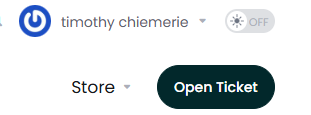
Open Ticket Button
-
On the Submit Ticket page, select the department that best matches your request:
-
General Enquiries – for general questions
-
Support Department – for technical support
-
Sales Department – for sales-related queries
-
Billing Department – for billing and payment issues
-
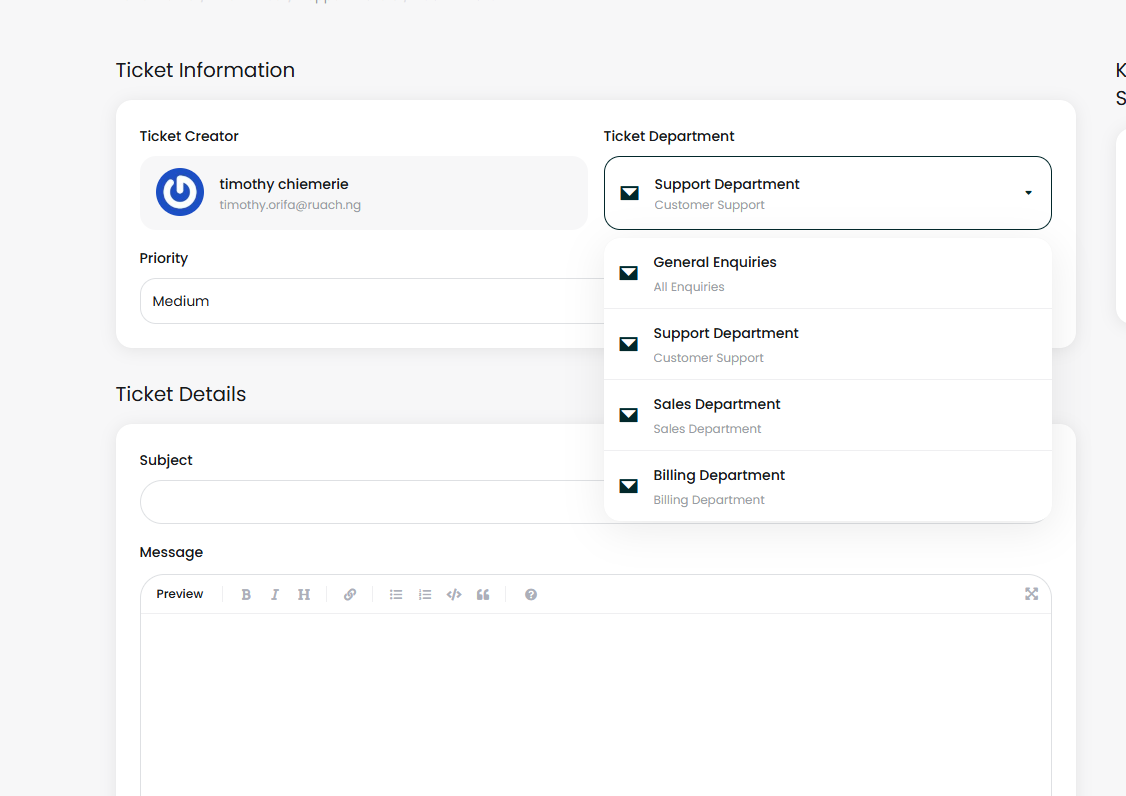
Submit Ticket Page
-
Enter the following details:
-
Subject – a short summary of your issue
-
Message – a detailed description of your request or problem
-
Attachments (optional) – upload screenshots or documents to help explain the issue
-
-
Click Submit Ticket. Our support team will respond as soon as possible.
Writing a Helpful Ticket
To ensure a faster and more accurate response, include as much detail as possible in your ticket. Helpful information includes:
-
What steps you’ve already tried and the results
-
Exact error messages (if any)
-
Your hosting environment (browser, CMS, operating system, etc.)
-
Any recent changes (updates, migrations, new uploads)
-
Whether the issue is consistent across devices or browsers
Screenshots and logs are especially useful for troubleshooting.
Viewing Your Ticket History
You can view all your past tickets in the Support Tickets section of the hosting panel.
Here you can:
-
Search for a specific ticket
-
Filter tickets by department or status
-
Sort tickets by date or subject
-
Open a ticket to view replies, add updates, or close it once resolved
This ensures you always have a record of your communication with ruachost support.


